There are some new and improved features in Whale Report, check it out below!
September 29, 2026, v1.38.3
Changes / Fixes
Map rendering on Android stays more stable on the All Sightings map, including sighting pins when panning and zooming.
Report group size is now limited to a maximum of 200 (up from the previous cap of 30).
All Sightings map controls, including floating action buttons, have more consistent sizing.
Mariners can turn Tracking on or off from All Sightings to share location in the background for more accurate nearby alerts while signed in
Location tracking for mariners
Mariners can share location so nearby whale alerts stay accurate.
To enable
Open Sightings → All sightings map and allow location when prompted.
When asked for background access, choose Always (iPhone) or Allow all the time (Android). If you already chose “While using the app” only, change it in Settings → Whale Report → Location.
On the map, leave Tracking On (default). Turn it Off anytime to stop background sharing on this device; you can still see yourself on the map.
What to expect: Android shows a notification while background tracking runs; iPhone may show the blue location indicator. Tracking stops when you turn Tracking off or sign out.
July 23, 2026, v1.30.2
Changes / Fixes
All Sightings and My Sightings filtering has been improved, including date ranges, real-time mode, and active filter behaviour.
My Sightings now loads older sightings more reliably, including improved scrolling, refreshing, and offline cached results.
Map markers now use updated species marker letters, including when sightings are loaded from offline data.
Whale Alert push notifications now support a custom alert sound.
Alert links and push notifications now open sightings more reliably, even when the sighting is not already saved on your device.
Enrollment issues now show clear guidance with retry and support options.
Account signup has been improved for users entering phone numbers through Universal Login.
Resources links for FAQ, How-To, and Report Distressed now open more reliably.
Report submissions now include improved source attribution and device/app details to help support troubleshooting.
Several map and reporting fixes were added, including improved report flow navigation, Android map snapshot cleanup, polygon rendering stability, and preserved map position when switching between list and map views.
Updated to support Android 16.
May 25, 2026, v1.20.6
Changes / Fixes
Alert detail page close ("x") icon moved lower to allow for easier closing.
Release Notes popup on new updates
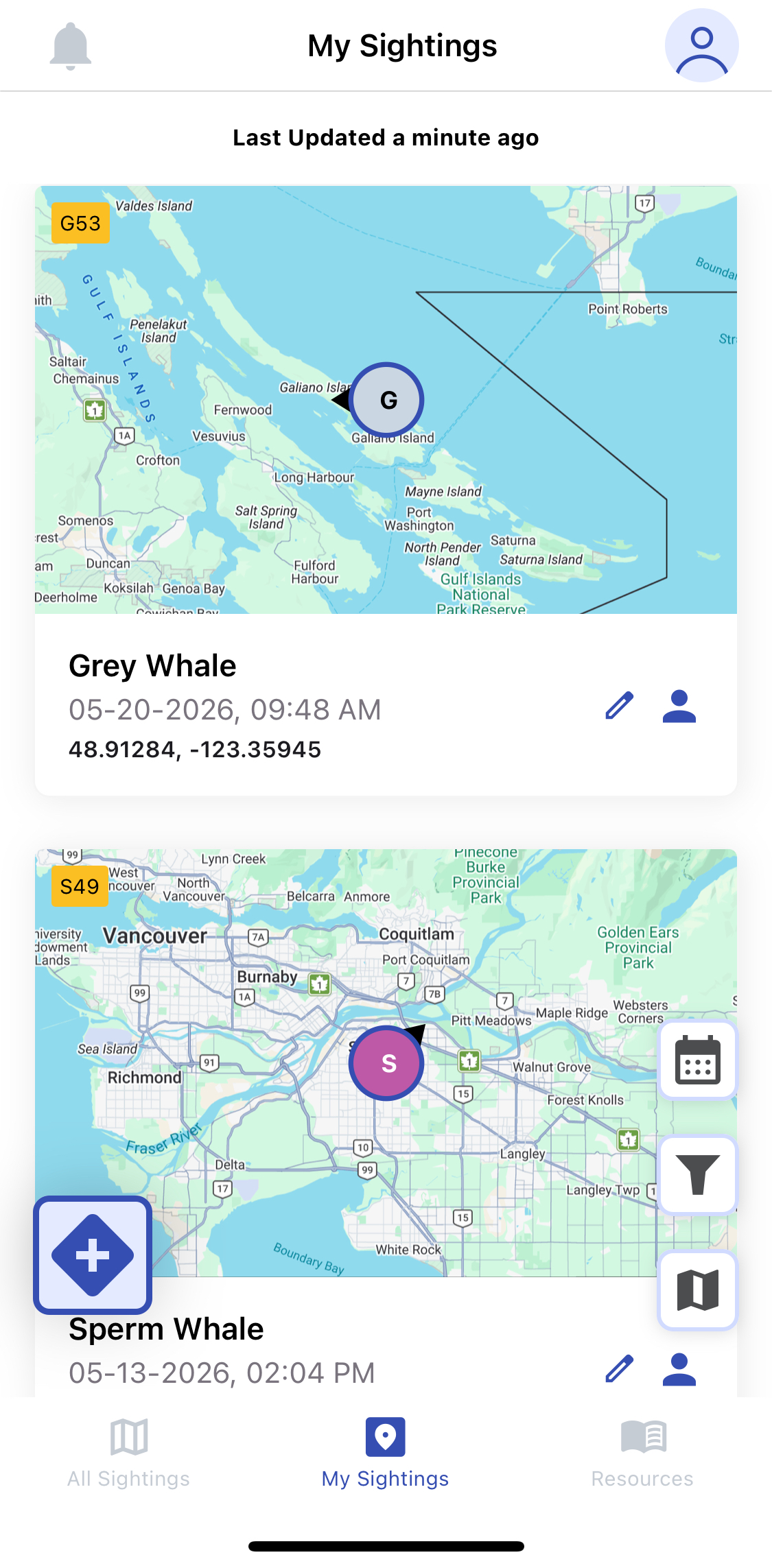
Sightings separated into All Sightings and My Sightings
Android Dark mode resolved by having all controls visible in a forced light mode for the app.
Map UX changes for live mode, filtering, time frame and table or map view.
Map UX changes for new / report a sighting from a word based button to an icon based button.
Added control to delete a failed report in addition to the existing retry operation.
Drafts are only visible on My Sightings and no longer on All Sightings
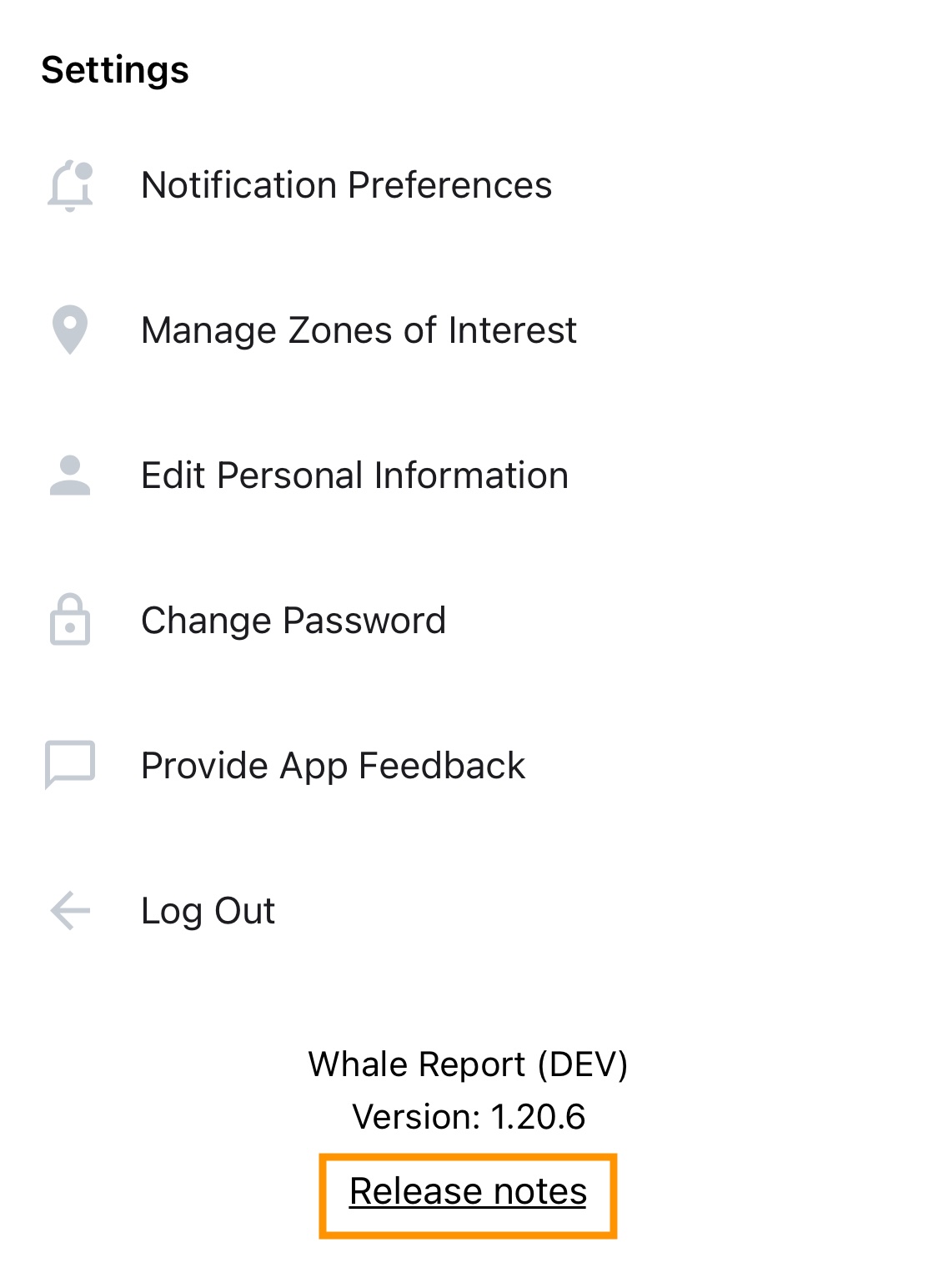
Release Notes In App
Find the link to this page in your Whale Report App now. Go to your profile icon in the top-right corner and you will see the link to Release Notes at the bottom of your screen.
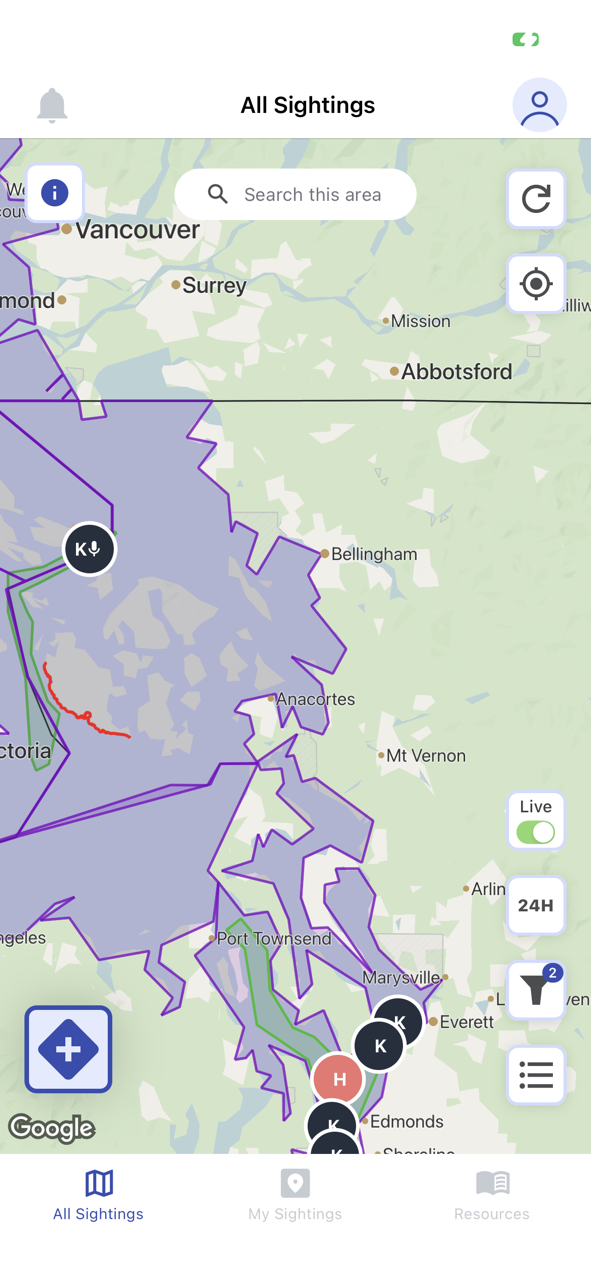
Map UX changes: A New Look
Button updated for reporting a sighting (the plus sign).
Buttons updated for turning on and off real-time mode and adjusting time window (for WRAS mariners). Look for the "Live" toggle button.
Filter button is moved to the bottom right side of the screen.
Click on the bullet list button to view sightings in list, click on the map to view it in the map again.
My Sightings / All Sightings
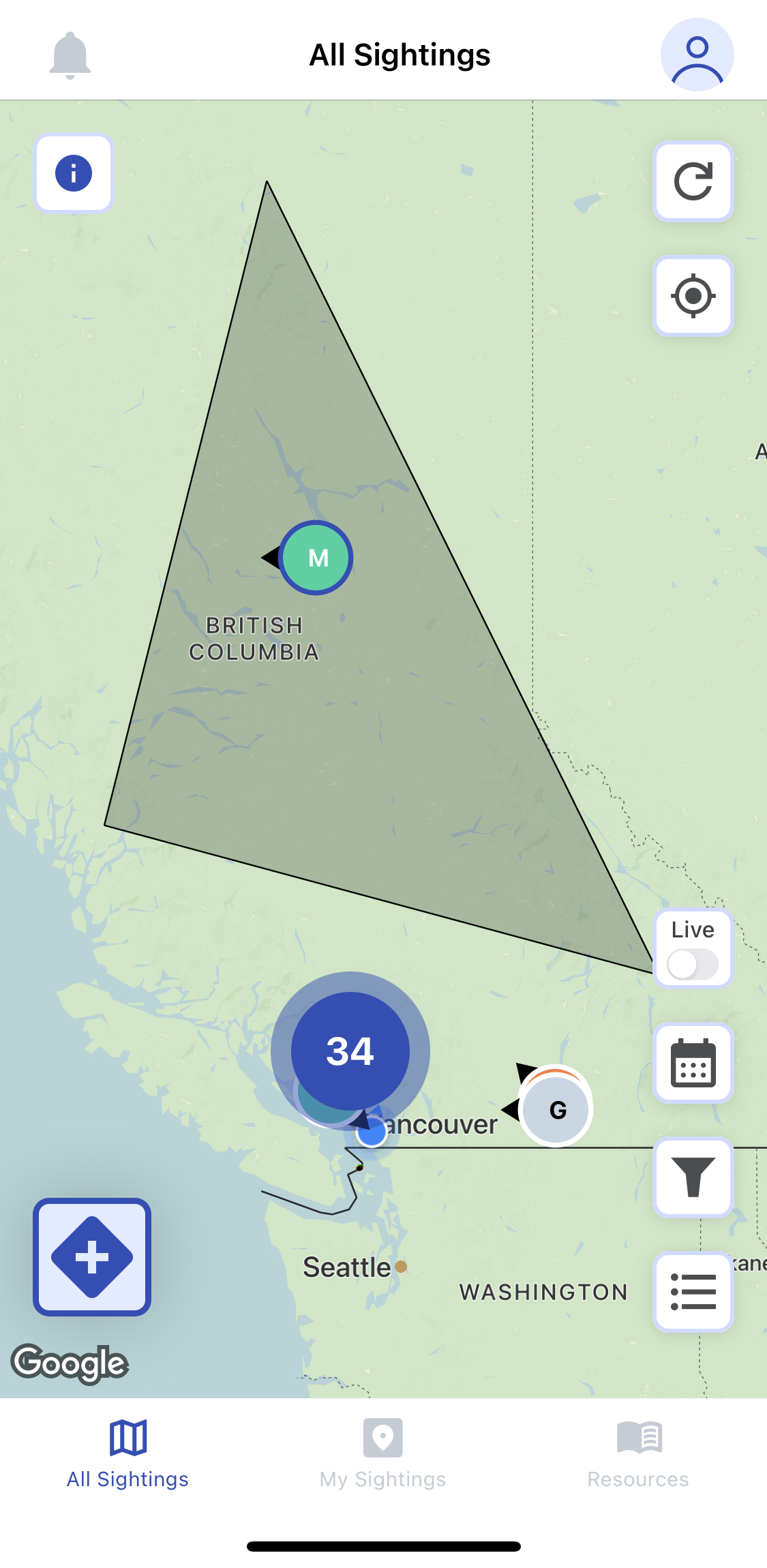
All Sightings
All sightings allows a user to switch between map and table view, and view all sightings based on your current controls and filters.
My Sightings
My sightings allows a user to view current and historical sightings created by the user. Scroll down to view older sightings and the time frame is not restricted, allowing the user to navigate to very old sightings.
April 27, 2026 v1.13.1
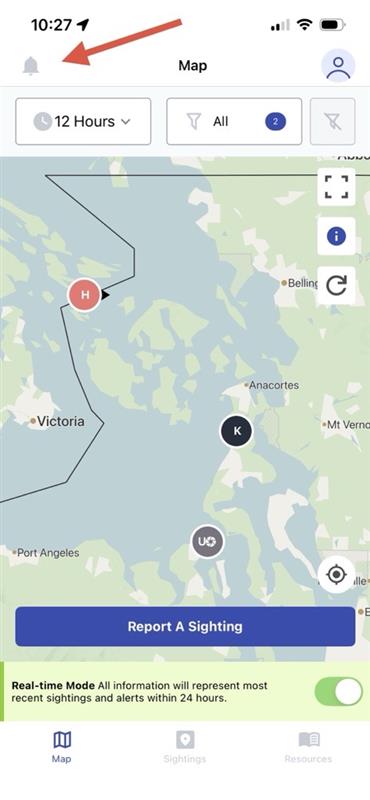
All users can how see their drafted or unfinished sighting reports. For mariners, alerts have been moved and can be found in the top left corner of your screen.
Changes / Fixes
Offline icon now shows in title bar when offline or in poor signal.
Title bar now appears on all pages, including the map, to simplify navigation.
App will now save progress on report submission (drafts).
"Failed" flag if a report does not upload. Retry button added to resubmit easily.
Map filters are saved between app use.
Links in emails, SMS and push notifications take your straight to that sighting (deep links).
Push notification registration is more robust, ensuring more users will receive push notifiations with links directly to the alert in the mobile app.
Known Issues
Android Users: Using the app in Dark mode on some Android devices led to app stability problems. We are working on a quick fix to ensure the app works on all devices as expected. In the meantime, close the app, switch off dark mode, and open again.
Alert detail page X to close the page is difficult to press.
Drafted, Queued, and Failed Sightings
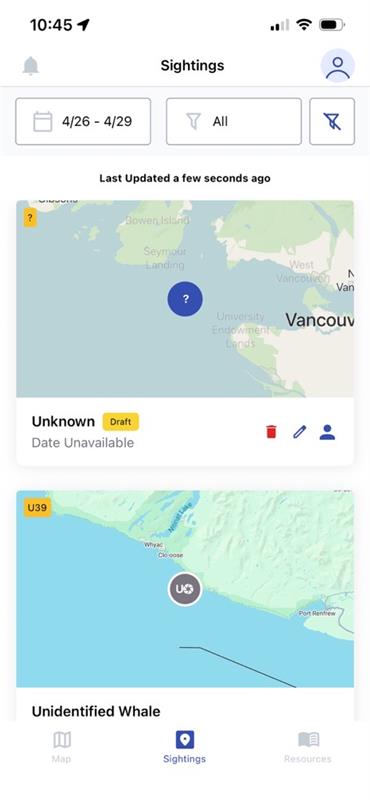
DRAFTS
If you have an unfinished report, you will see it marked as a draft. This means you can go in and continue finishing the sighting report, or you can delete it if you no longer wish to submit. Use the pencil icon to continue editing, or use the red trash icon to delete.
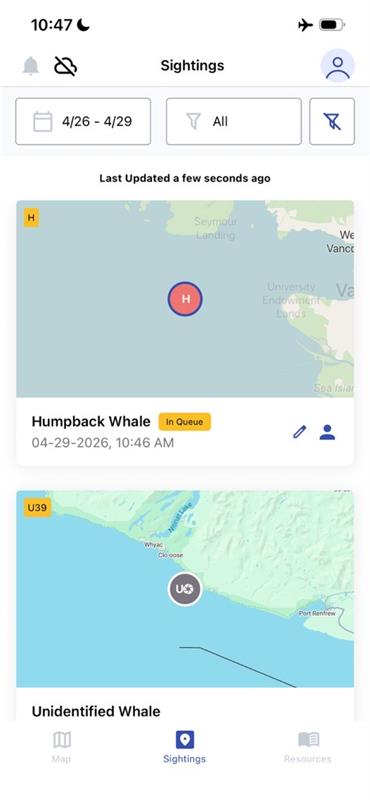
IN QUEUE
If you have submitted a sighting while offline, you will see it in a queued status. When you return online, your sighting will automatically be uploaded, but refresh your sightings page to be sure. Once the Queue label is gone, you know it has been submitted.
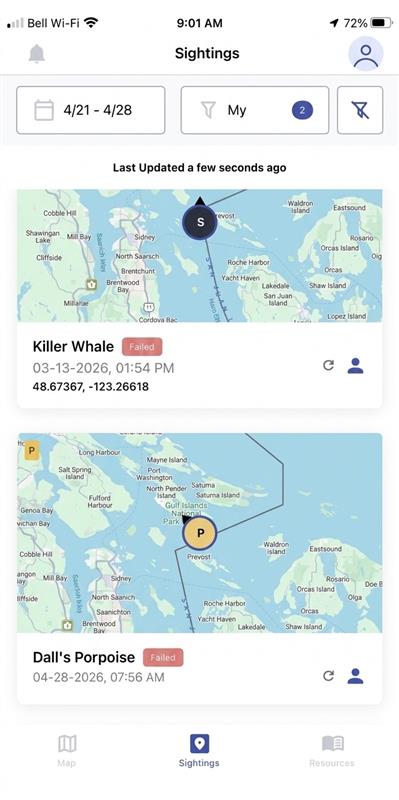
FAILED
If your sighting for some reason did not submit, you will see it marked as failed. In this case, you can click the retry arrow and it will retry your sighting submission. If the Failed label is gone, you know it has been submitted.
Note: If you had previous version of the app, you may be seeing historical sighting attempts that failed due app crashes, poor cell reception, etc. In older versions of the app if you had a report fail and you tried to report again – your device still stored both attempts! With these new updates you are able to see all of those failed attempts. To clear your failed attempts it is recommended to:
1. Delete and reinstall the application. This should clear your queue of failed attempts you no longer need.
OR
2. Refresh/retry sending any failed submissions by hitting the circular arrow. If duplicates are accidentally submitted, Ocean Wise staff will be reviewing and removing.
For Mariners: Where to view Alerts?
The Alerts page has moved from the bottom panel to top panel. Look for the bell icon to now view your alerts!
Clear Filters
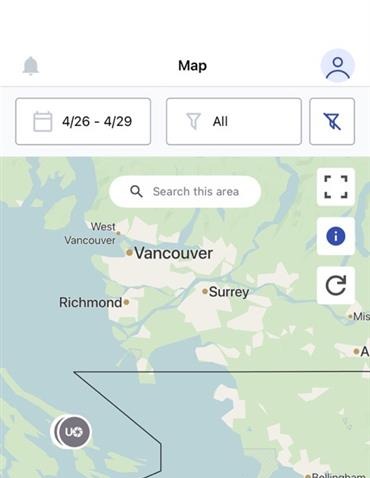
There is now a button on the right-hand side where you can easily clear any existing filters you have.
Notifications
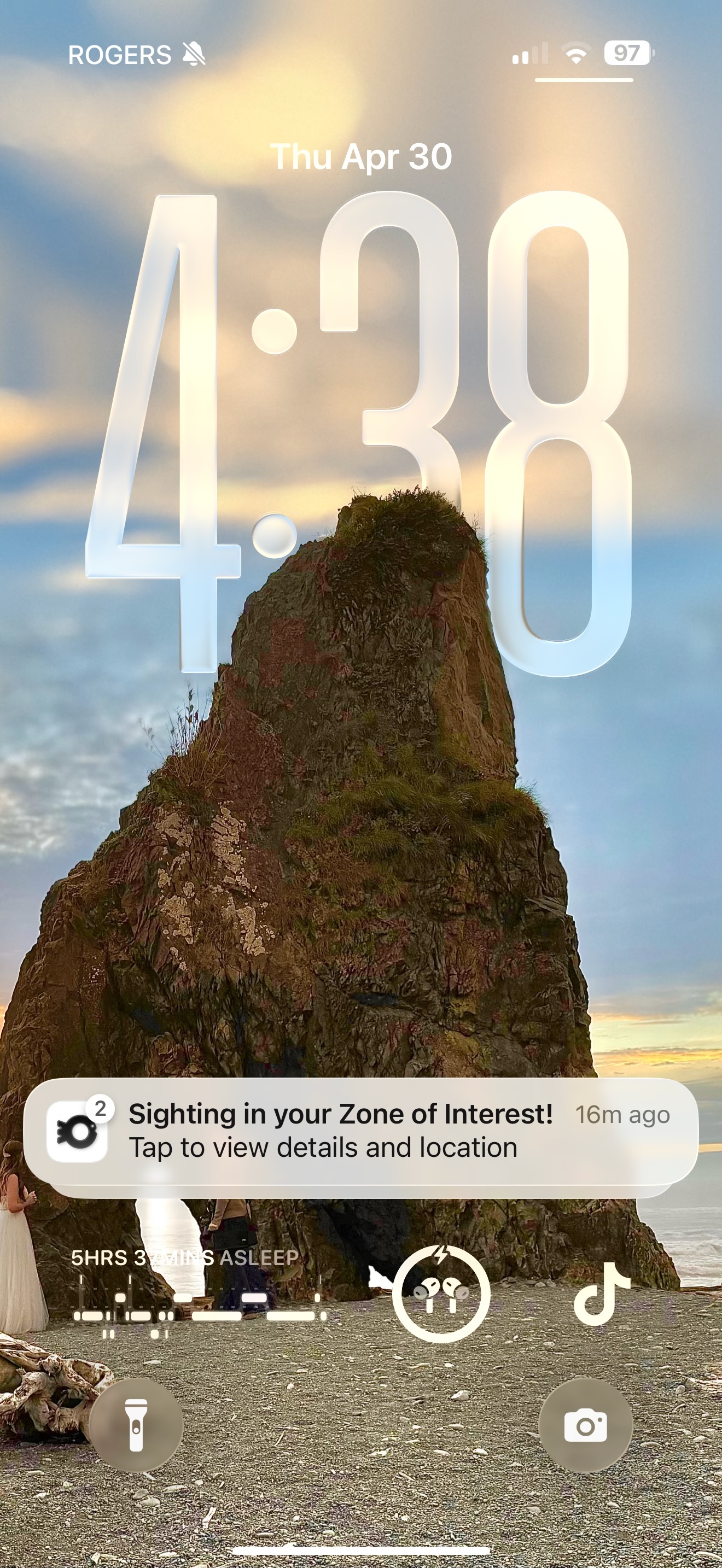
Notifications have receiveed an update. Push notification registration is more robust and taping the badge will show you the newest alert
Web App Updates
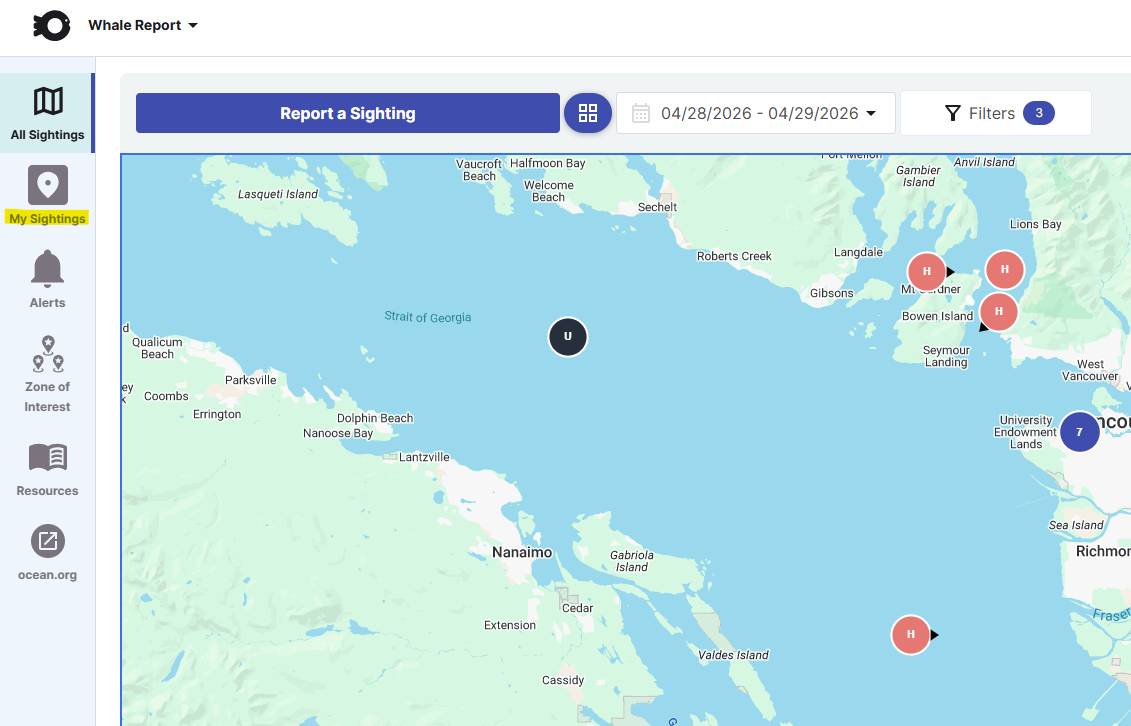
In the web version of Whale Report, locate "My Sightings" on the left-hand side panel.